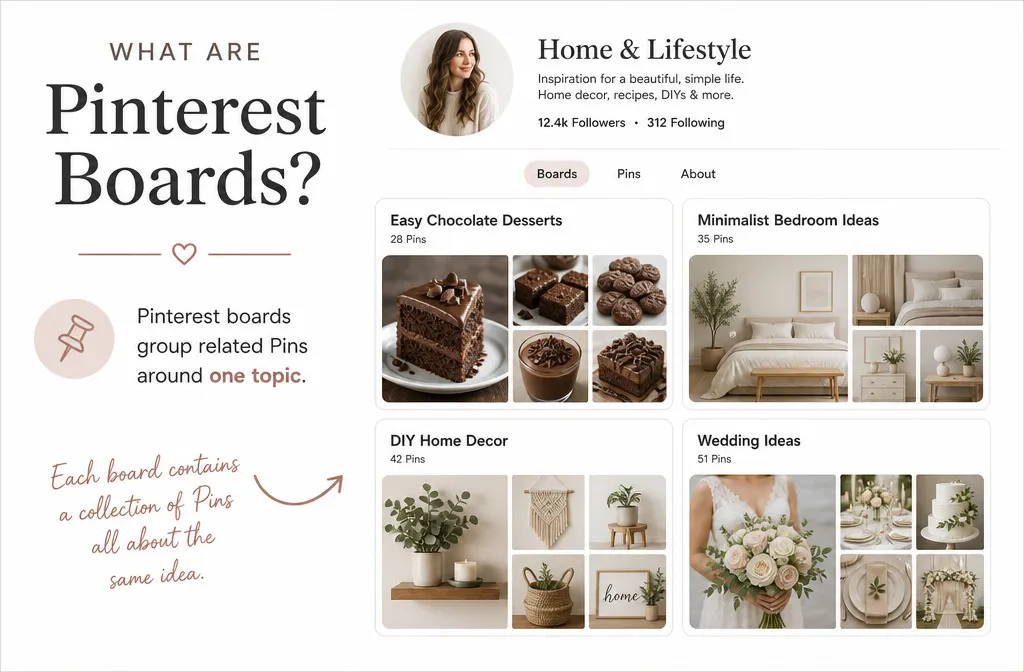
So, what are Pinterest boards?
A Pinterest board is a collection of Pins organized around one topic, like a digital folder for saving ideas. If you’re setting up a Pinterest account for the first time, understanding what a board does and how to build one properly has a real effect on how much traffic and visibility you get from the platform. This post covers what Pinterest boards are, how they work, and how to create and organize your first ones.
What Are Pinterest Boards?
A Pinterest board is a collection of Pins grouped around a single theme. Every Pin you save lives on a board, and every board sits on your profile for other people to browse. Think of a board as a folder: “Easy Chocolate Desserts” holds recipe Pins, “Minimalist Bedroom Ideas” holds design Pins, and so on.
Boards can hold Pins you save from other accounts, Pins you upload from your own website, or a mix of both. A single profile can have dozens of boards, each covering a different topic inside your niche.
How Pinterest Boards Work
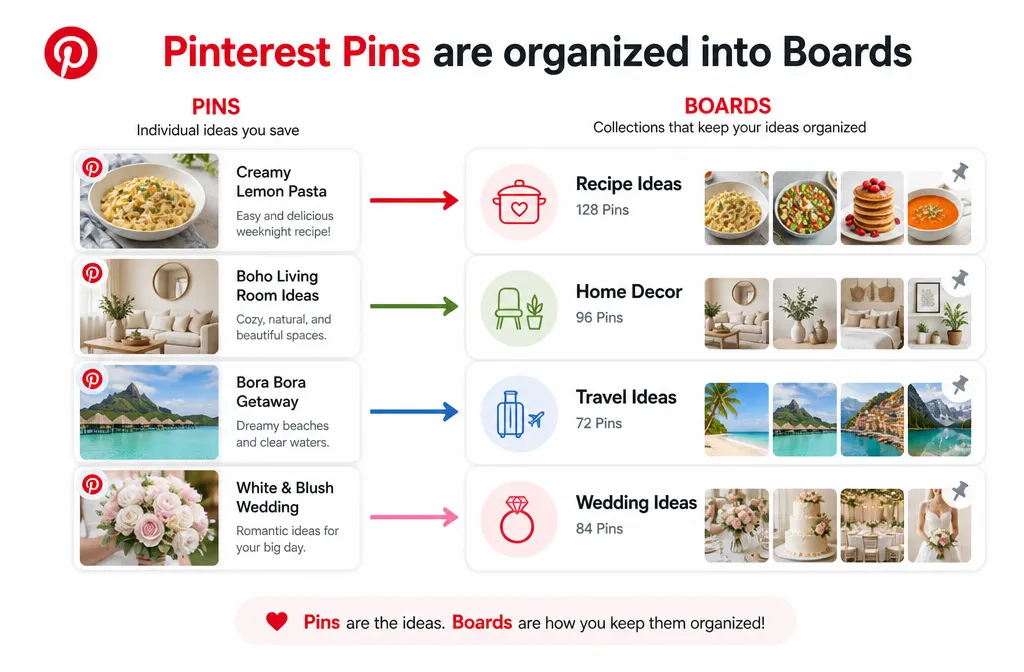
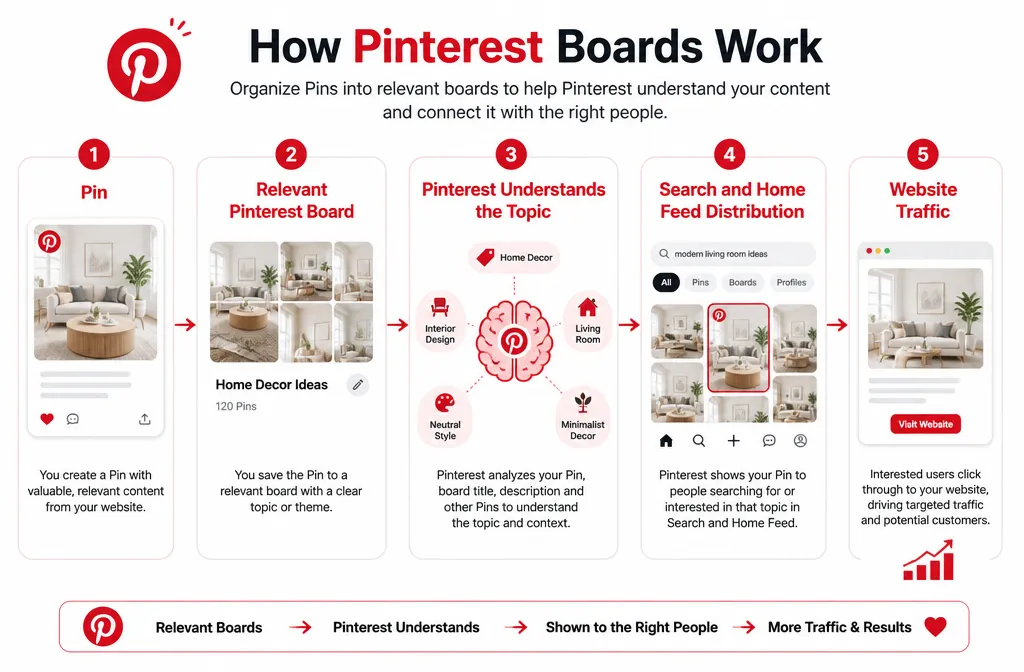
Every time you save a Pin to a board, you’re giving Pinterest a signal about what that board, and your account, is about. Pinterest uses board names, descriptions, and the Pins inside them to match your content to the people searching for it.
That means boards aren’t just storage. They’re part of how Pinterest’s search and recommendation system decides who sees your Pins. A board named “DIY Home Decor,” filled with relevant, well-described Pins, tells Pinterest exactly which searches and home feeds it belongs in.
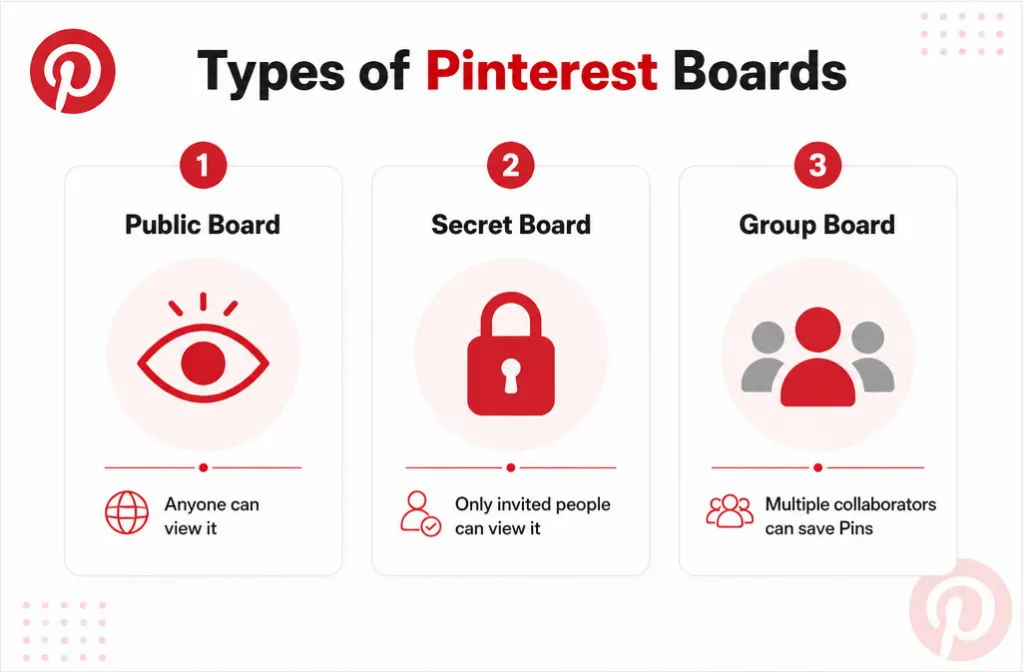
Boards can be public, secret, or shared with a group of collaborators. Each type works a little differently.
Types of Pinterest Boards
Public Boards
Public boards are the default. Anyone can find them, follow them, and see the Pins inside. Most business and creator boards should stay public, since that’s what makes them discoverable in Pinterest search.
Secret Boards
Secret boards are visible only to you and anyone you’ve specifically invited. You can toggle a board to secret directly when you create it, or switch it later from the board’s settings, according to Pinterest’s help center. Secret boards work well for gift planning, content you’re not ready to publish, or drafts you want to build out before making them public.
Group Boards
Group boards let multiple people save Pins to the same board. As the owner, you decide what collaborators can do, from just saving and commenting to fully managing Pins and sections, and you invite people by name, username, or email, according to Pinterest’s group board documentation. Group boards carry less algorithmic weight than they used to, so treat them as a supplement to your own boards, not a replacement.
Boards vs. Sections
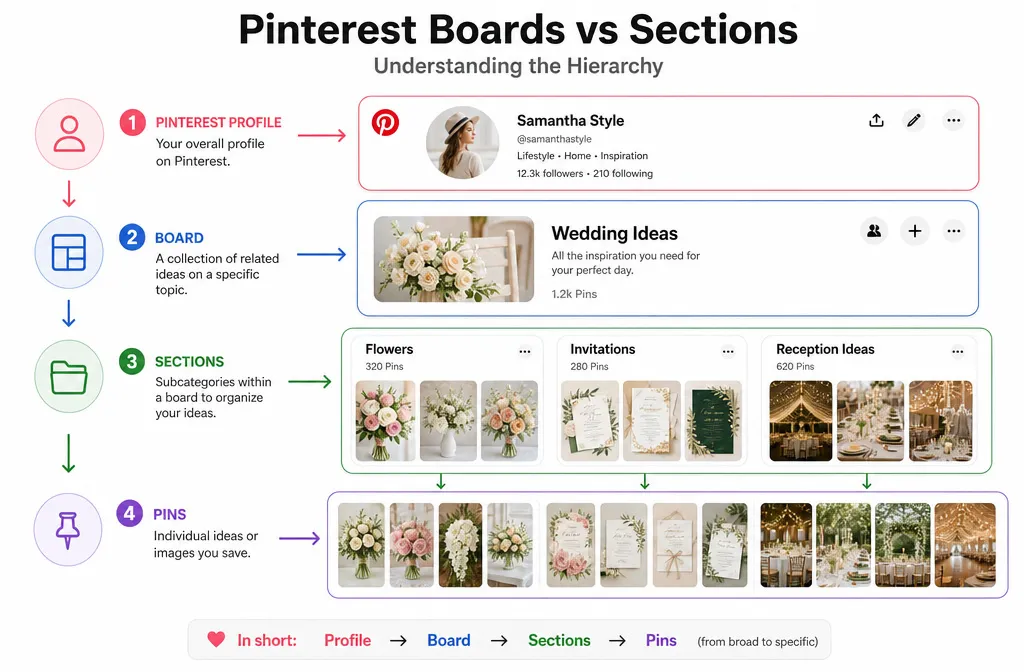
A board and a section aren’t the same thing. A board is the main collection; a section is a subfolder inside a board that breaks a broad topic into smaller pieces. If your “Wedding Ideas” board is getting crowded, sections for “Flowers,” “Invitations,” and “Reception Ideas” keep it organized without forcing you to create three separate boards.
To know more about Board and Sections, you can read my full blog here.
What Are Pinterest Boards Used For?
So, what are Pinterest boards used for beyond organizing your saves? Two things: personal organization and Pinterest’s own understanding of your content.
For everyday users, boards keep saved ideas easy to find later, whether that’s a wedding board, a recipe box, or a moving checklist. For businesses and bloggers, boards do more work behind the scenes: they’re a direct input into how Pinterest categorizes and distributes your content.
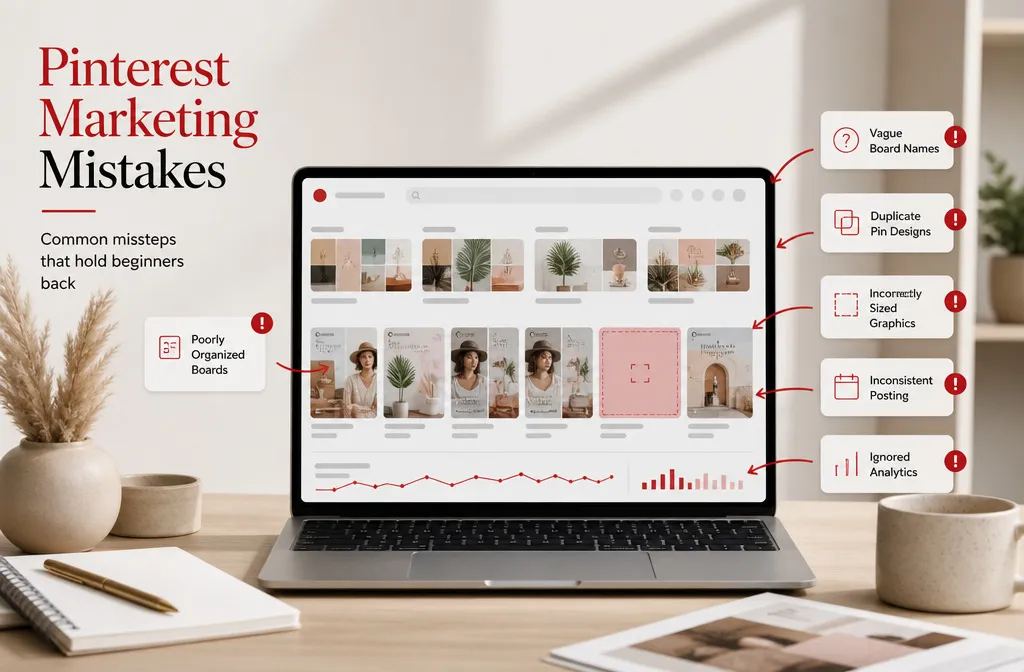
A profile with clear, specific, keyword-focused boards tells Pinterest what topics you’re an authority on. That context helps your Pins reach the right home feeds and search results, which drives most organic Pinterest traffic. Vague or overlapping boards do the opposite: they blur the signal and make it harder for Pinterest to know who to show your content to.
How to Create a Pinterest Board
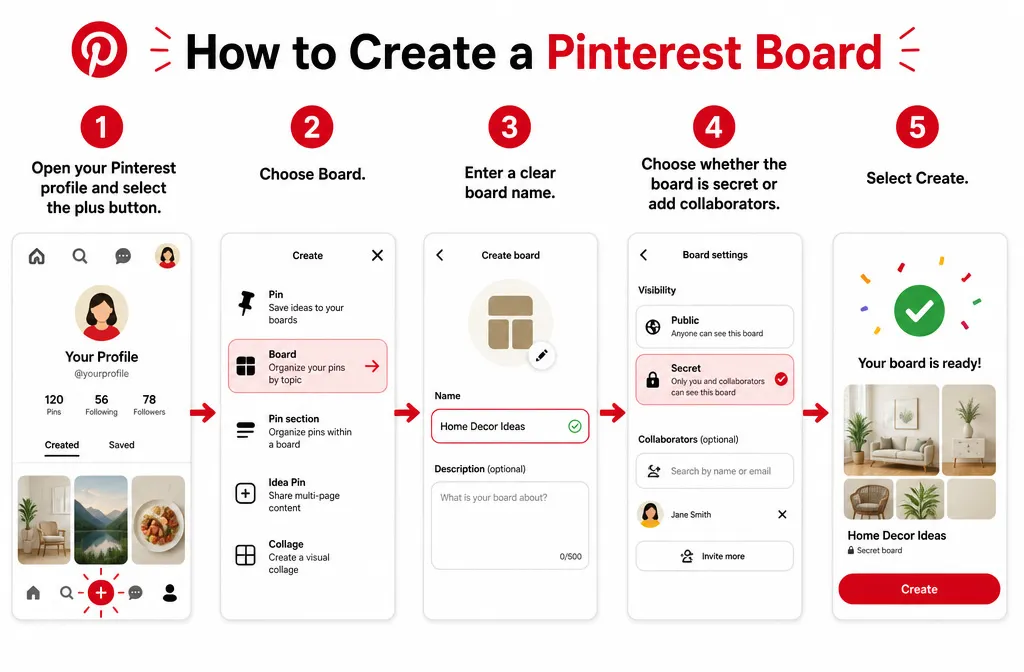
Creating a board takes less than a minute. Here’s the process, based on Pinterest’s current help center instructions:
- Log in to your Pinterest account and select the plus icon in the navigation bar, or the plus button on your profile.
- Select Board.
- Enter a name for your board. Pinterest may suggest a name based on your activity, but you can edit it.
- Toggle “Keep this board secret” if you want the board hidden, or add collaborators if you’re building a group board.
- Select Create.
You can also create a board while saving a Pin: click the dropdown next to the suggested board name, select Create board, name it, and save.
Once the board exists, start adding Pins. Save Pins from other accounts, upload your own images, or use a scheduling tool to fill it out over time.
How to Set Up Your Board for Search
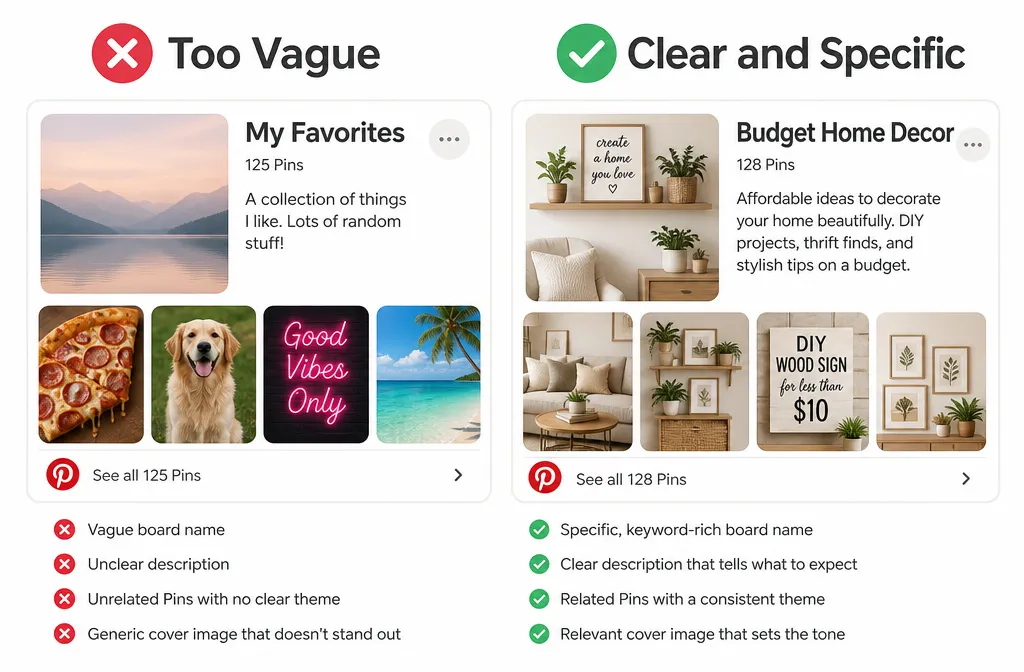
The name and description you give a board do more work than most people realize. Both feed directly into Pinterest’s search and recommendation system, so it’s worth taking a minute to get them right.
Naming your board. Use the specific term people would search for, not a vague label. “Budget Home Decor” tells Pinterest and your audience exactly what to expect; “My Favorites” tells them nothing.
Writing the description. Use the description field for context your board name doesn’t cover: related terms, the outcome someone gets from following the board, and a natural mention of what kind of content lives there. Keep it conversational. A description that reads like a keyword list won’t help you, and it won’t read well to a human visitor either.
Choosing a cover image. Pick a cover that visually represents the board’s theme at a glance. It’s the first thing people see when they land on your profile, so it should make the topic obvious before they click.
Pinterest Board Best Practices
A few habits separate boards that grow from boards that stall out.
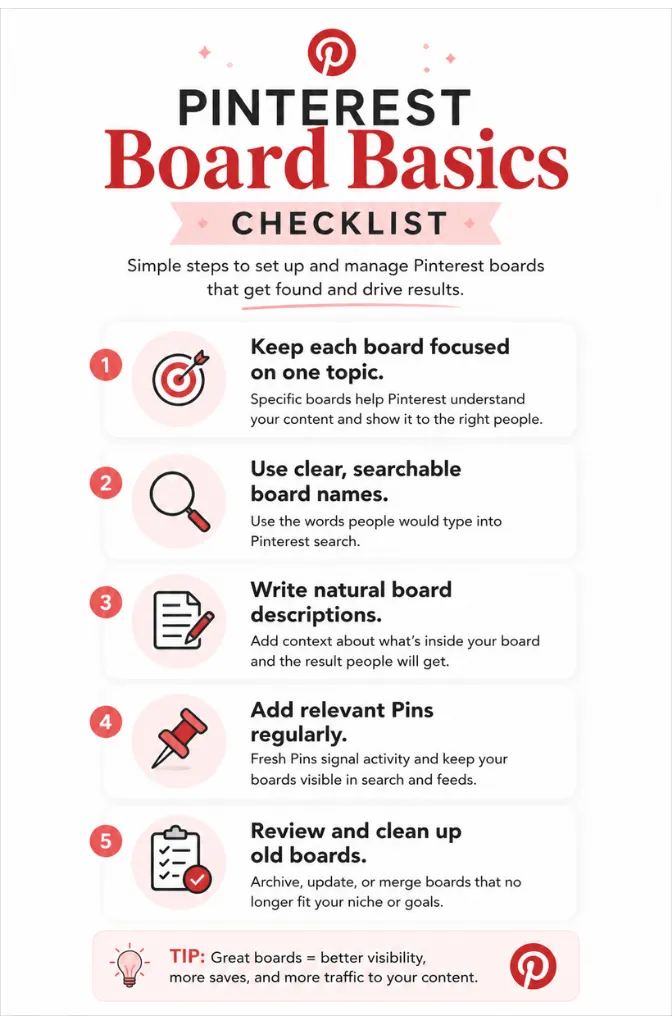
- Keep boards specific. A board covering one clear topic outperforms a catch-all board covering five loosely related ones.
- Pin to your boards regularly. Boards that keep receiving fresh Pins signal ongoing activity, which Pinterest treats as a relevance signal.
- Use sections for broad topics. If a board covers enough ground to need subcategories, sections keep it browsable instead of overwhelming.
- Review performance periodically. Pinterest Analytics shows which boards drive saves, clicks, and impressions. Use that data to decide where to add more content.
- Archive or merge boards that no longer fit. As your account grows, some early boards will overlap or go stale. Pinterest lets you merge one board into another to keep your profile clean.