
Most people open Pinterest, create a few boards, upload some pins, and wait. Nothing happens. Pinterest marketing for beginners fails at that point because the platform is treated like Instagram when it behaves far more like Google.
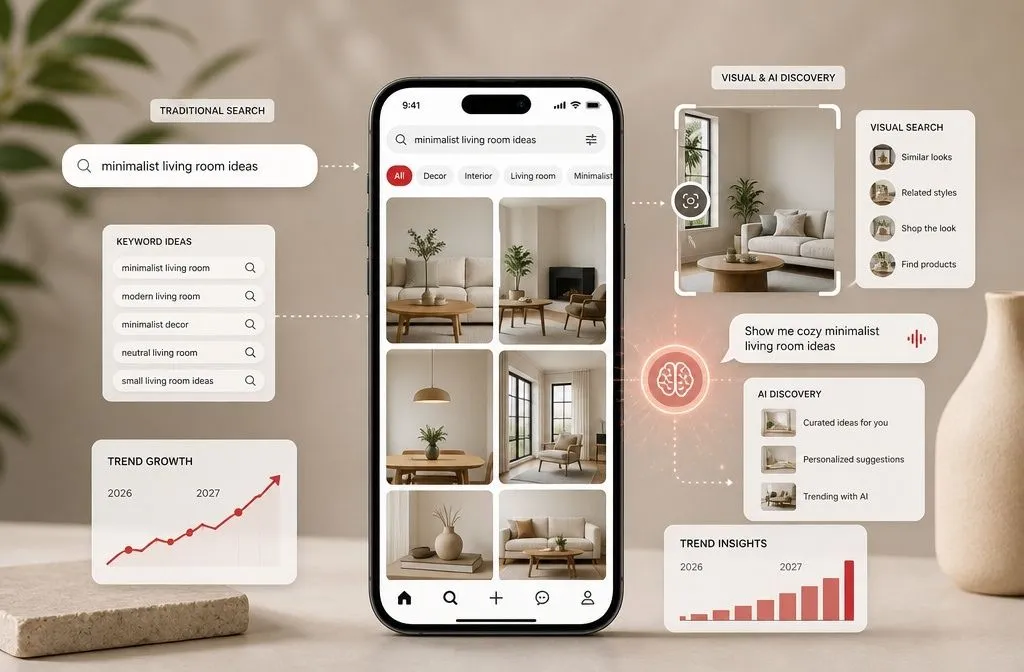
Pinterest is a search and discovery engine. People arrive with an intention; they type something in, and they save what they plan to act on later. That changes the order of operations completely. Keywords come before design, and setup comes before both.
Here is the sequence that works, along with the numbers that are worth knowing before you invest a single hour.
What is Pinterest marketing?
Pinterest marketing is the practice of publishing keyword-targeted images that link back to your website, so people searching for what you offer find your content and click through.
On Pinterest, you are not building a following. You are building a searchable library. A pin published today can still send traffic three years from now, which is why the platform rewards patience in a way that feed-based platforms never do.
The audience is worth understanding too. Pinterest reported 640 million global monthly active users for the quarter ending June 30, 2026, and the company has said the platform handles more than 80 billion searches amonth. Gen Z now makes up over half of that user base, which quietly ends the “Pinterest is only for millennial moms planning weddings” assumption.
One more number shapes everything you write: Pinterest says more than 96% of its text-based searches are unbranded. People search “small kitchen storage ideas,” not your business name. Your brand name is the least useful thing you can put in a pin title.
Set up the account properly before you publish anything
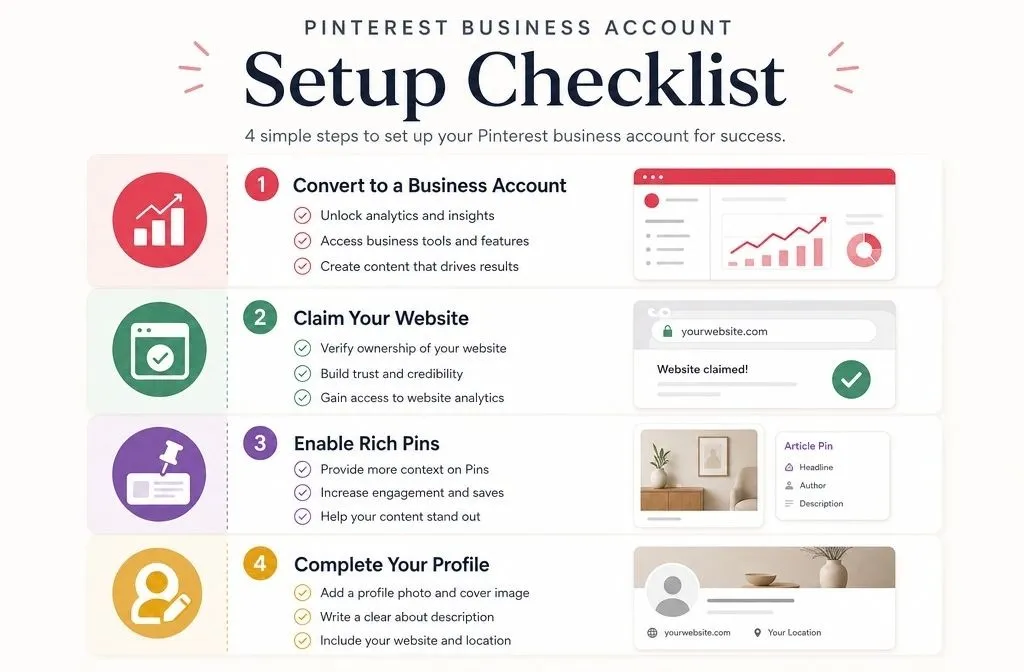
Skipping this stage is the most common beginner mistake. Three tasks, maybe forty minutes total.
Convert to a free business account
A business account costs nothing and unlocks analytics, the ads manager, and native scheduling. Personal accounts do not get scheduling at all, so this is not optional if you plan to publish consistently.
Use your real business name in the name field and let your bio carry the keywords. The old “Brand | Niche Keyword” format is not worth chasing anymore. Your bio gives you room to say plainly who you help and what you publish, and that is the text worth writing carefully.
Claim your website
Claiming connects every pin from your domain back to your profile and gives you data on what people save from your site. Pinterest supports three verification methods: an HTML tag, an HTML file upload, or a DNS TXT record.
Pick the DNS TXT record if you have access to your domain registrar. It survives theme changes, plugin updates, and site migrations, which the HTML tagmethod does not always do. Note that one website can only be claimed by one Pinterest account. You can check out my step-by-step guide on how to claim your website.
Turn on Rich Pins
Rich Pins sync information from your page onto the pin itself. Article Rich Pins pull your headline, description, and author, and they refresh automatically when you edit the page.
There is no application process anymore. You add Open Graph or Schema.org tags to your page head, and pins linking to that page start showing the data within about 24 hours. Most SEO plugins output these tags already.
One detail almost nobody mentions: Pinterest explicitly does not count listicles or image-heavy pages with little text as articles. If your roundup posts are not showing Rich Pin data, thin body copy is the likely reason.
If you’re not familiar with what rich pins are, you can check my guide.
Keyword research is the whole game
Everything else on Pinterest is downstream of this. Your profile, boards, pin titles, and descriptions all need to use the language your audience types.
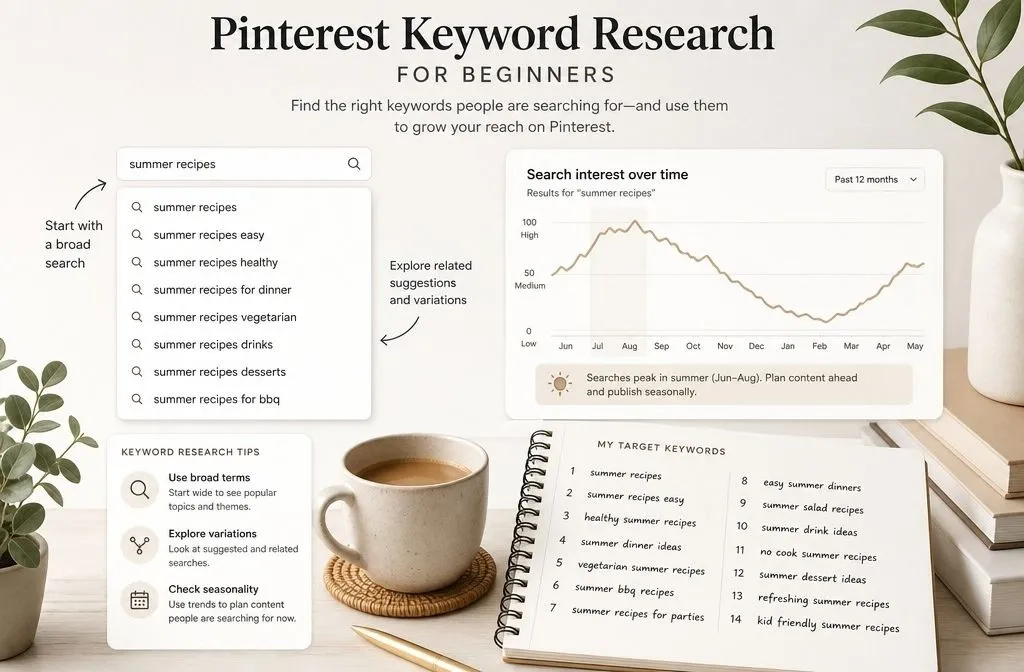
Start inside Pinterest itself. Type a broad term into the search bar and read the autocomplete suggestions, then look at the coloured keyword bubblesthat appear above the results. Those are real queries, ranked by Pinterest’s own data.
Then cross-check seasonality in Pinterest Trends. The tool shows search interest over time and lets you filter by age group and region, which tells you when to publish rather than just what to publish.
Build a working list of ten to fifteen terms before you create anything. You will reuse the same list across your profile description, board names, board descriptions, pin titles, pin text overlays, and pin descriptions.
Build boards Pinterest can categorise
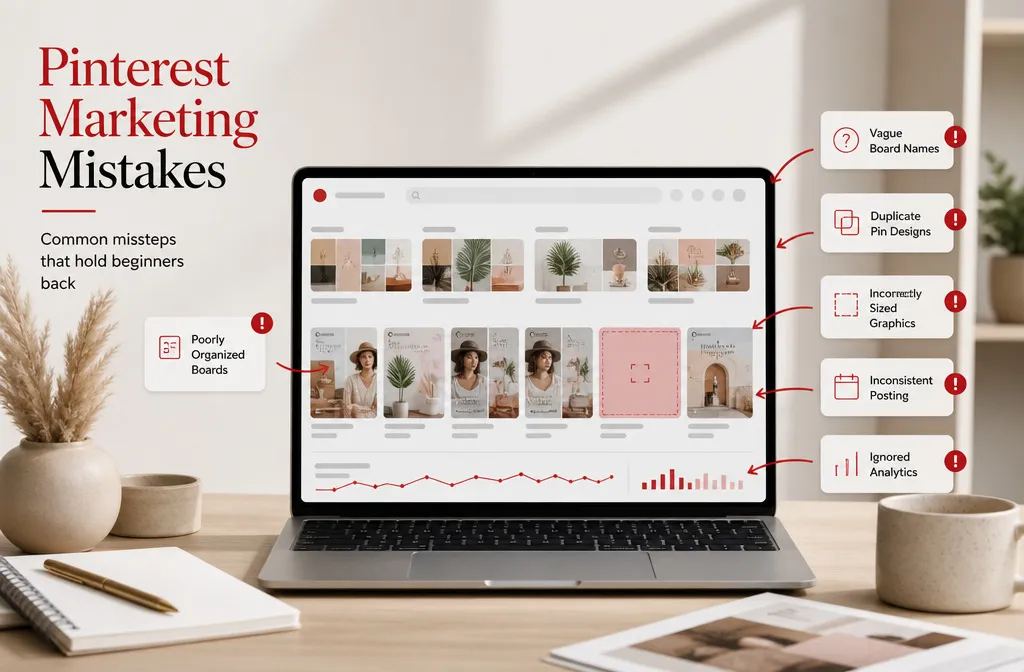
A board is a filing system for the algorithm as much as it is for your reader. Vague names give Pinterest nothing to work with.
Name boards after the search term, not after a clever phrase. “Small Kitchen Storage Ideas” works. “Kitchen Goals” does not. Keep each board narrow enough that every pin inside it genuinely belongs, and broad enough that you can keep adding to it for years.
Write a description for every board. Do not repeat the board name. Use it for synonyms, related subtopics, and intent words such as ideas, tips, and inspiration, since that is how people phrase Pinterest searches.
Ten to fifteen boards is a reasonable starting point. Adding forty empty boards on day one does nothing except spread your content thin.
Create pins that can be found and get clicks
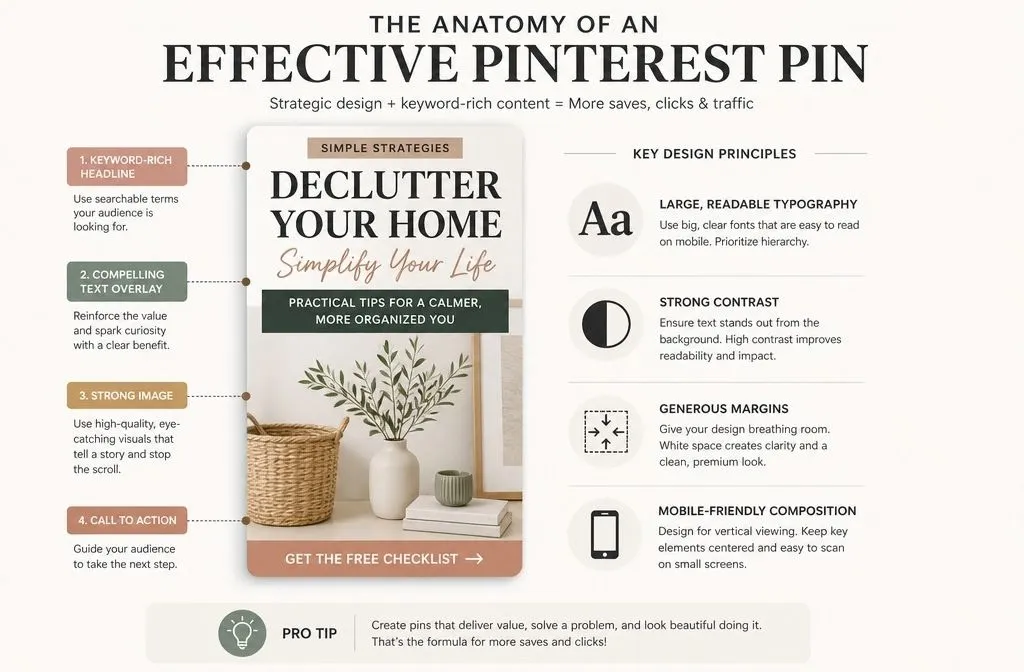
Pinterest recommends a 2:3 aspect ratio, or 1000 x 1500 pixels. Anything taller than roughly 1:2.1 gets cropped in the feed, and square images take up noticeably less screen space on mobile.
The text fields matter more than most beginners expect:
- Pin title: up to 100 characters, but only the first 40 or so reliably display. Front-load the keyword and the hook.
- Pin description: up to 500 characters. Write two to four natural sentences that include your main keyword and a couple of synonyms, then a simple call to action.
- Text overlay: put the keyword directly on the image. Pinterest reads text in images, and readers scan overlay text before anything else.
For design, keep fonts large and legible, use strong contrast, and leave generous margins. Avoid stock template designs that look identical to everything else in the feed.
Create two or three genuinely different images per blog post rather than one image reused everywhere. Different angles reach different searches, and Pinterest prioritises images it has not indexed before.
If pin production is where your workflow stalls, that is usually the point where bringing in Pinterest management services pays for itself, because volume and consistency are the two things a beginner account most often cannot sustain alone.
How often to pin, and the scheduler limits
Consistency beats volume. Three to five fresh pins a day, published every day, will outperform thirty pins dumped in one afternoon followed by two silent weeks.
The native scheduler is free and works, with real constraints. Pinterest allows scheduling up to 30 days in advance, one pin at a time, with a maximum of 10 pins in the queue at once. You can edit the date, title, board, description, and link after scheduling, but not the image.
That 10-pin ceiling is the detail that catches people out. Advice suggesting you can queue 40 or more pins a day natively does not match what Pinterest
currently allows. Once you outgrow the native tool, a Pinterest-approved partner such as Tailwind handles bulk scheduling.
Publish seasonal content 30 to 45 days early. Pinterest users plan ahead, and search interest for a holiday climbs well before the date itself.
What to track in your first 90 days
New accounts take time. Expect very little in month one, early signals around month three, and meaningful traffic somewhere between months six and twelve. That is normal, not failure.
Check three metrics in Pinterest Analytics and read them as a diagnostic:
| What you see | What it usually means | What to change |
| Low impressions | Pinterest does not understand your topic | Keywords, board names, board descriptions |
| High impressions, low clicks | The pin is being shown but not chosen | Image design, text overlay, title hook |
| Clicks but high bounce | The page does not deliver on the pin | Match your page headline and content to the pin promise |
Saves are worth watching separately. A save means someone intends to come back to your content, and it is one of the clearest positive signals you can earn.
Track pin URLs, boards, titles, and publish dates in a simple spreadsheet. Without it, you cannot tell which of your decisions caused which result.
Is Pinterest marketing for beginners worth the time?
It depends entirely on whether your content is visual, evergreen, and searchable.
Good fits: recipes, home decor, fashion, weddings, travel, parenting, personal finance, digital products, e-commerce, and any service business with a blog. Poor fits: breaking news, hyper-local services with a tiny addressable market, and B2B software with no visual angle.
The cost side is honest and low. The account is free, the scheduler is free, and Canva’s free plan covers pin design. What Pinterest costs you is time, roughly three to five hours a week for the first few months, spread across keyword research, pin creation, and scheduling.
The trade-off is the timeline. Pinterest will not fix a traffic problem this quarter. It compounds, which makes it a strong second or third channel and a risky only channel if you need results immediately.
Your first two weeks, in order
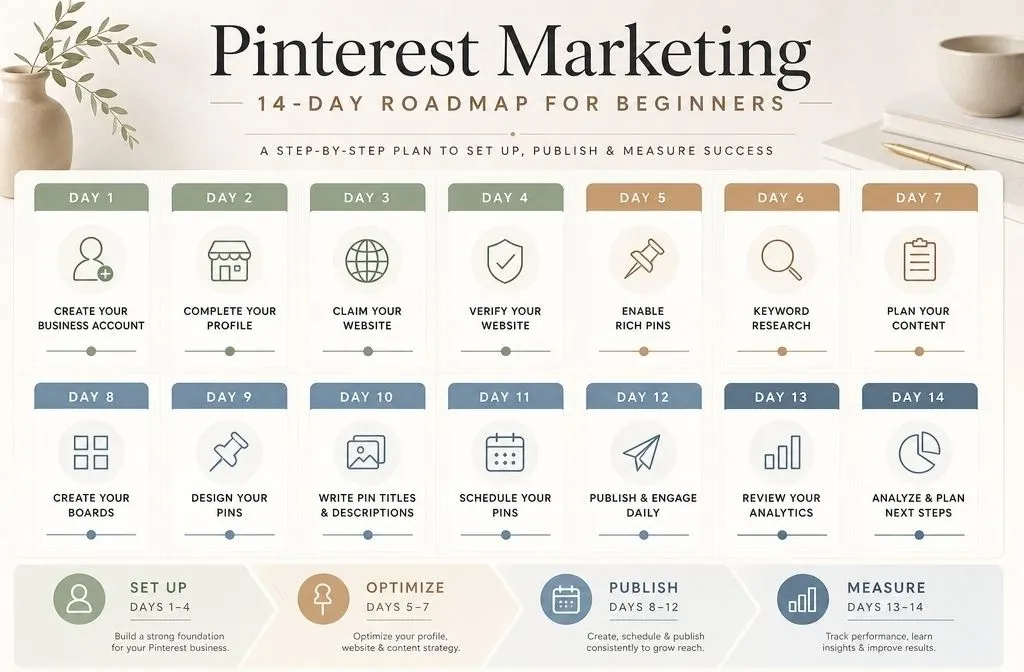
- Convert to a business account and write a bio that names who you help and what you publish.
- Claim your website using the DNS TXT record method.
- Confirm Rich Pins are pulling your article titles.
- Build a list of 10 to 15 keywords from Pinterest search and Pinterest Trends.
- Create 10 boards named after those keywords, each with a written description.
- Design 10 pins at 1000 x 1500 across your best existing content.
- Schedule 3 to 5 pins a day and set a calendar reminder to review analytics in 30 days.
Do those seven things in that order and you will be ahead of most accounts that have been publishing for a year without a keyword strategy. If you would rather hand the ongoing work to someone who does this daily, book a call to talk through Pinterest management.