
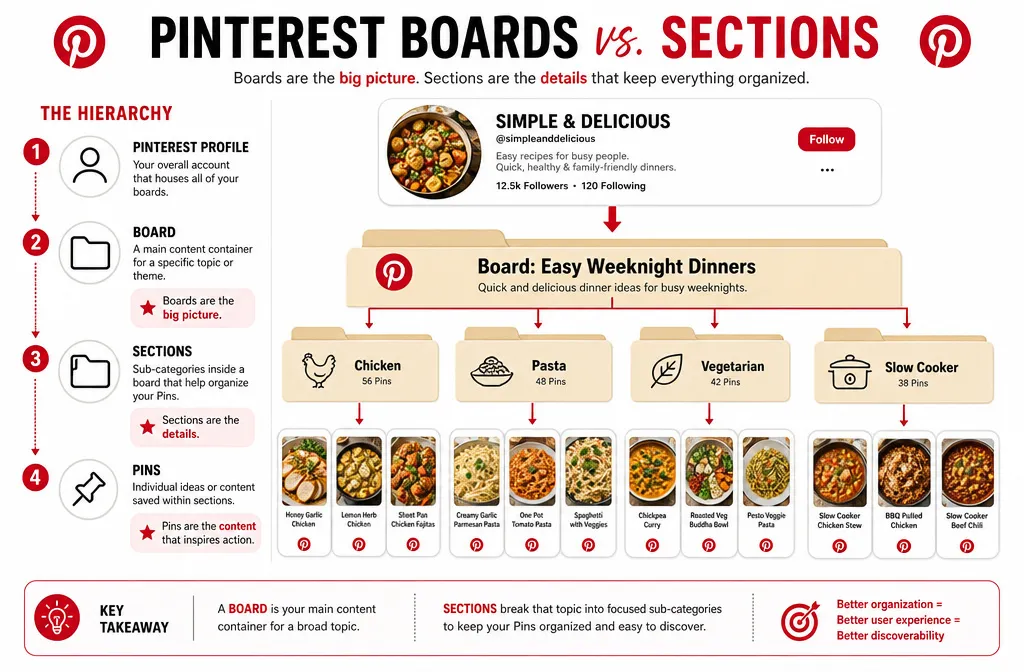
A Pinterest board and a Pinterest section look similar inside the app, and that's where most of the confusion starts. If you've ever wondered what a Pinterest board is compared to a section tucked inside one, here's the short version: a board organizes your whole profile, and a section organizes one board. That distinction matters more than it looks, because using the wrong one can bury your content instead of helping people find it.
Here's how each one works, and when to reach for which.
What Is a Pinterest Board?
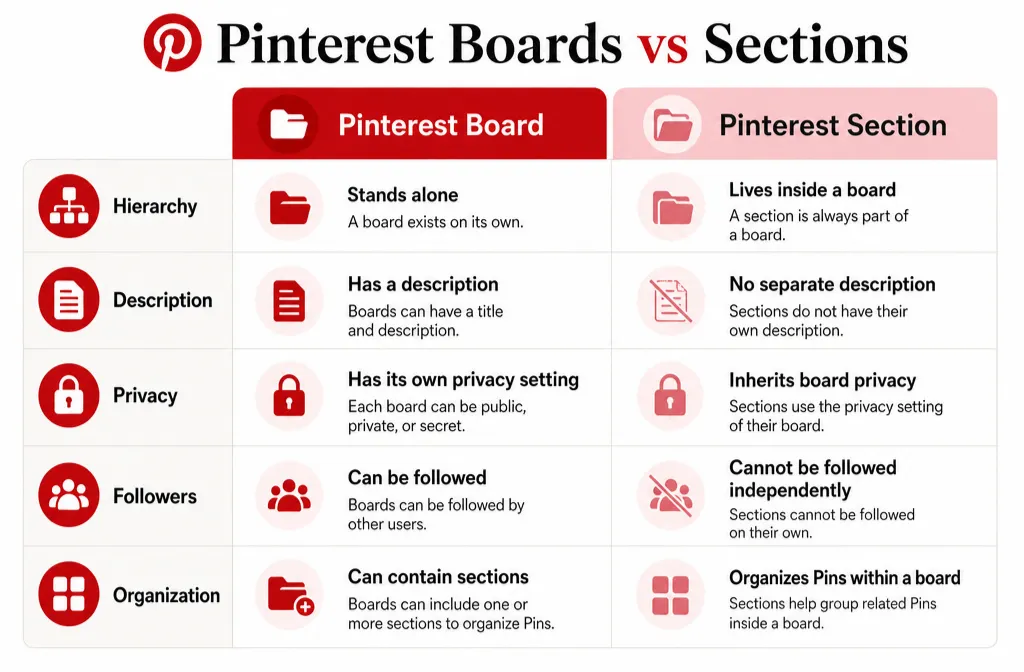
A Pinterest board is a collection of Pins saved around one topic. Boards work like folders on your profile. Each one gets its own title, its own description, and its own privacy setting, and each one shows up as a separate entry when someone visits your profile or searches Pinterest.
Boards come in three types. Public boards appear on your profile and in search. Private (secret) boards stay visible only to you and anyone you invite. Group boards let multiple people save to the same board, and they can be public or private.
Every board you create becomes its own space in Pinterest's index, which is a big part of why board names and descriptions carry real SEO weight.
What Is a Pinterest Board Section?
A section is a sub-folder inside a board. It doesn't stand on its own the way a board does. Instead, it groups related Pins that already live inside one board, using a name you assign when you create it.
Say you run a board called "Easy Weeknight Dinners." Instead of splitting that into five separate boards, you could add sections for Chicken, Pasta, Vegetarian, and Slow Cooker, all inside the same board. The Pins stay in one place. The sections just make them easier to browse.
Sections only get a name, not a separate description or privacy setting. Everything about a section inherits from the board it lives in.
Pinterest Boards vs Sections: The Key Differences
Boards and sections solve different problems. A board is the container Pinterest treats as a distinct entity. A section is a browsing aid inside that container.
- Hierarchy: A board stands alone. A section always lives inside a board and can't exist without one.
- Description: Boards get their own description field, which gives Pinterest more context and keywords to work with. Sections only get a name.
- Privacy: Boards can be set to public, secret, or group. Sections inherit whatever privacy setting their parent board already has.
- Followers: People follow boards, not sections. A section can't build a following of its own.
- Combining: Pinterest lets you merge two boards into one, or merge two sections inside the same board. There's no built-in way to split a section out into its own board. If a section outgrows its board, you'd need to create a new board and move the Pins over one by one.
When to Use a Board vs When to Use a Section
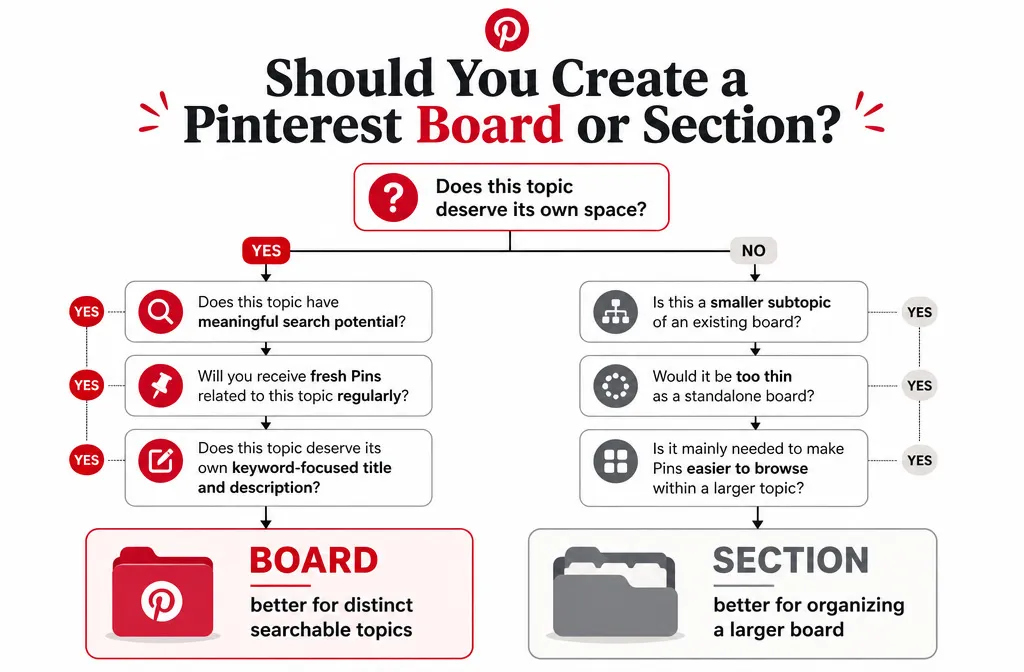
Create a new board when:
- The topic has real search volume on its own
- You'll keep adding fresh Pins to it for months or years
- It deserves its own keyword-rich name and description
Add a section instead when:
- The topic is a smaller slice of a board you already have
- Splitting it out would leave you with a board too thin to grow on its own
- You mainly want an easier browsing experience for visitors, not a new entry for search
A few Pinterest marketing agencies go a step further and skip sections almost entirely on client accounts, opting to create additional boards instead, since board titles are searchable in a way section names aren't. That's a defensible strategy for larger accounts, but for most creators, sections are still worth using once a board gets big enough that scrolling through it stops being pleasant.
How to Create a Pinterest Board
- Log in to Pinterest and click the plus icon in the navigation bar (or tap the plus icon in the app).
- Select Board.
- Enter a name. Pinterest may suggest one based on your activity, but you can edit it.
- Toggle Keep this board secret if you want it private, or add collaborators to turn it into a group board.
- Click Create.
How to Add a Section Inside a Board
- Open the board you want to organize.
- Click the plus icon at the bottom of the board and select Section.
- Enter a name, then click Add.
- Click Organize at the top of the board, select the Pins you want to move, click Move, then choose the section.
Does Adding Sections Help Your Pinterest SEO?
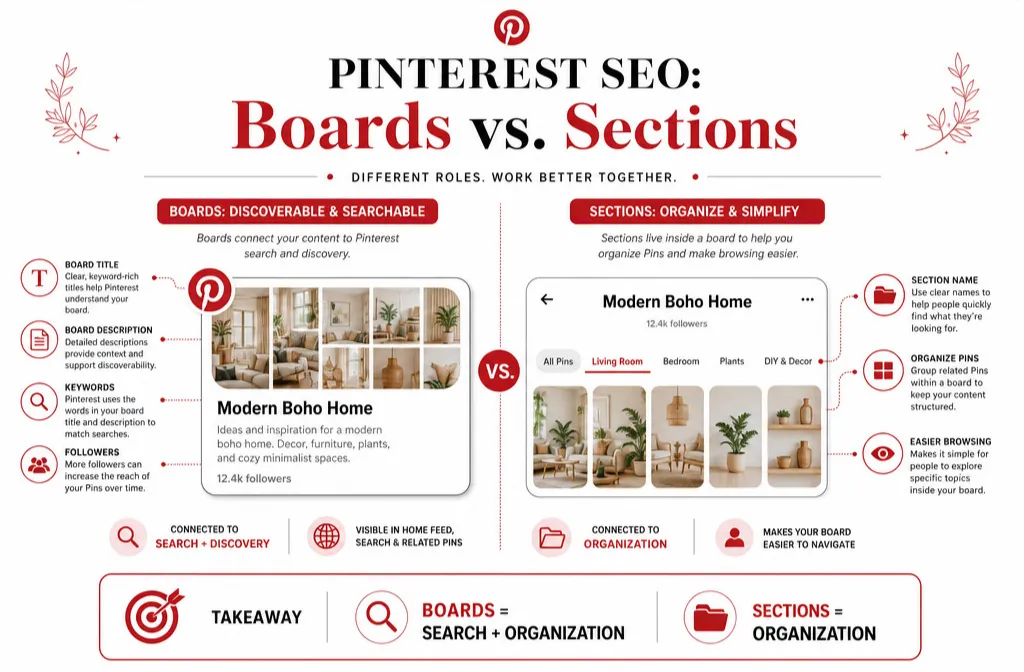
Not directly, based on what several Pinterest marketing sources report. Sections don't get their own description field, and board titles are what shows up as a distinct, keyword-rich entry in Pinterest search. That's the main reason some agencies favor more boards over more sections.
That doesn't make sections useless. A board with a hundred-plus Pins and no organization is hard to browse, and a board people actually enjoy exploring keeps them on your profile longer, which is itself a positive signal. Treat sections as a user-experience tool first, and any SEO benefit as a side effect rather than the reason to use them.
If your board structure feels tangled and you're not sure whether a topic deserves its own board or just a section, that's usually a sign your account needs a strategy pass. If that's where you're at, feel free to schedule a free consultation with me, and we'll map out a board and section structure that actually supports your growth.