
Using Google Search Console Alongside Pinterest Analytics
If most of your traffic comes from pins, you probably check Pinterest Analytics and stop there. But Google Search Console Pinterest data tells a different part of the story: whether Google can even find the pages you’re pinning, whether those pages show up in Google Images, and whether Pinterest counts as a link source at all. Neither tool replaces the other. Used together, they show the full path from a pin to a page that actually performs.
What Google Search Console Shows You
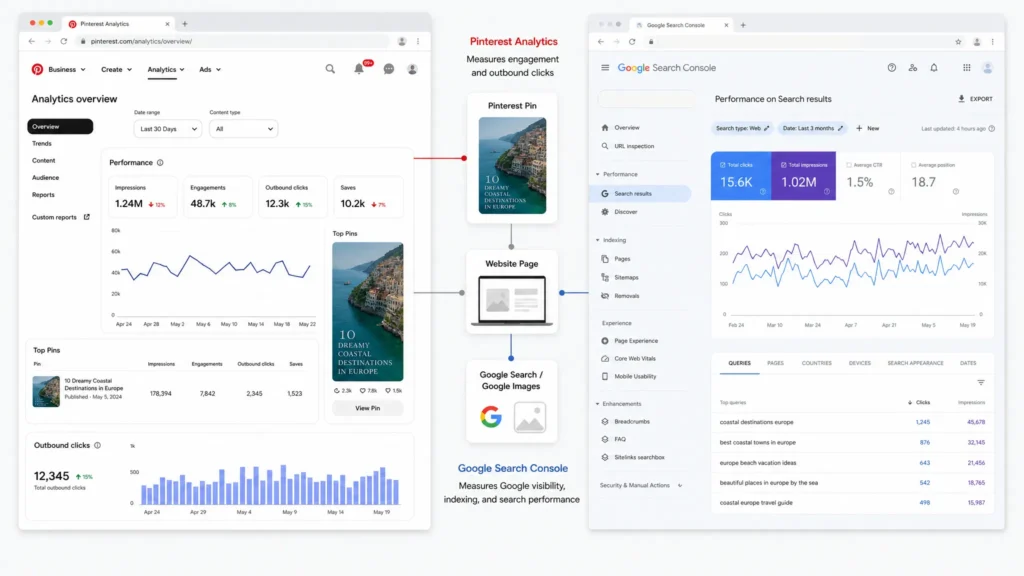
Search Console reports on how your site behaves inside Google, not on where your visitors came from. It tracks indexing status, crawl activity, search queries, click-through rate, average position, and which external sites link to you.
It does not show session sources, referral traffic, or which platform sent a visitor. That distinction matters here: Search Console looks backward at how Google sees your site, while an analytics tool looks forward at what a visitor does after landing. If you want to know how many people clicked through from a specific pin, that number lives in Pinterest Analytics or Google Analytics 4, not Search Console.
Setting Up Search Console for a Pinterest-Driven Site
Verify your property in Search Console before doing anything else. A DNS TXT record through your domain registrar is the most stable verification method, and it won’t break if you change themes, plugins, or hosting later.
Since 2019, Search Console has supported Domain properties, which roll every version of your site (http, https, www, non-www) into one unified view instead of splitting your data across four separate properties. Set this up once, and every report below pulls from the same clean data set.
Confirming Google Indexed the Pages You’re Pinning
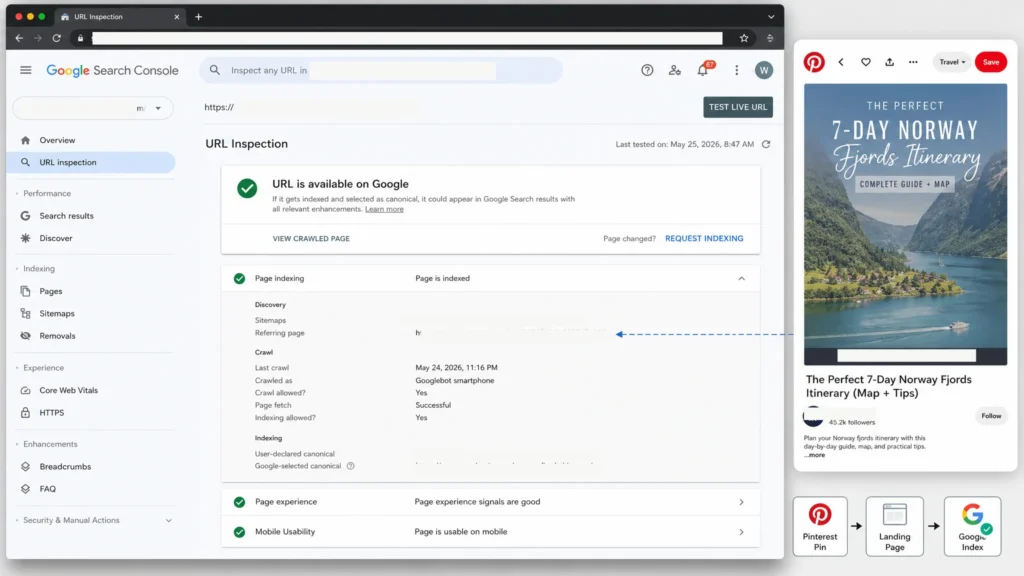
A pin is only as useful as the page behind it. If that page isn’t indexed, it can’t rank in Google search or Google Images, no matter how well it performs on Pinterest.
Use the URL Inspection tool to check any page you’re actively pinning. It shows whether the page is indexed, when Google last crawled it, and lets you request indexing directly if a new post hasn’t been picked up yet. This step matters even more if you run any pages with a noindex tag on purpose, since it lets you confirm Google is respecting that tag on the pages you don’t want ranking, while still indexing the ones you do.
Finding Pinterest in Your Links Report
Open the Links report and check your Top linking sites. Pinterest sometimes shows up here, but it rarely passes meaningful ranking value, and here’s why.
Outbound links from pins are nofollow by default, which tells Google not to count them as an endorsement of the destination page. Google has said since 2019 that nofollow, sponsored, and UGC attributes act as hints rather than absolute directives, and the Links report itself doesn’t distinguish followed from nofollow links in what it displays. So Pinterest can appear in your Links report as a source Google discovered, even though it isn’t functioning as a traditional backlink for ranking purposes. Its value is in referral traffic and content discovery, not link equity.
Checking Google Images Performance for Your Pins
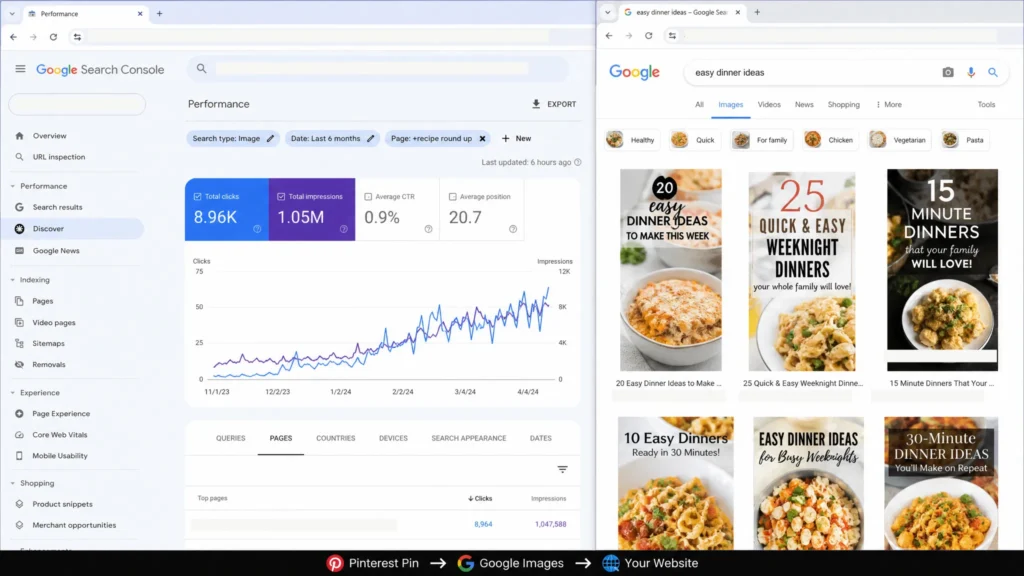
Pin images occasionally get pulled into Google Images results, especially when a page is well-optimized and the image is unique. To see this, open the Performance report and filter by Search type: Image.
This filtered view shows clicks and impressions coming specifically from Google Images searches, separate from your regular web search traffic. If a page with strong Pinterest engagement also shows rising Image search clicks, that’s a sign the same visual is earning you traffic from two different discovery surfaces at once.
Core Web Vitals: Where Google and Pinterest Overlap
Google confirms Core Web Vitals as a ranking signal, though a relatively small one compared to content relevance. Check it under Experience in Search Console, where pages are scored Good, Needs Improvement, or Poor.
A slow page hurts you twice. It’s a minor drag on Google ranking, and it works against you when a Pinterest user actually clicks through and has to wait for the page to load. Note that Search Console needs a minimum amount of traffic before it shows Core Web Vitals data for a given page, so brand-new posts may not show a score yet. Test those individually with PageSpeed Insights instead of waiting for Search Console to catch up.
Where Search Console Stops and You Need Something Else
Search Console won’t show you saves, pin clicks, or which board is driving engagement. That data lives in Pinterest Analytics, and it’s worth checking directly rather than trying to reconstruct it from Google’s side.
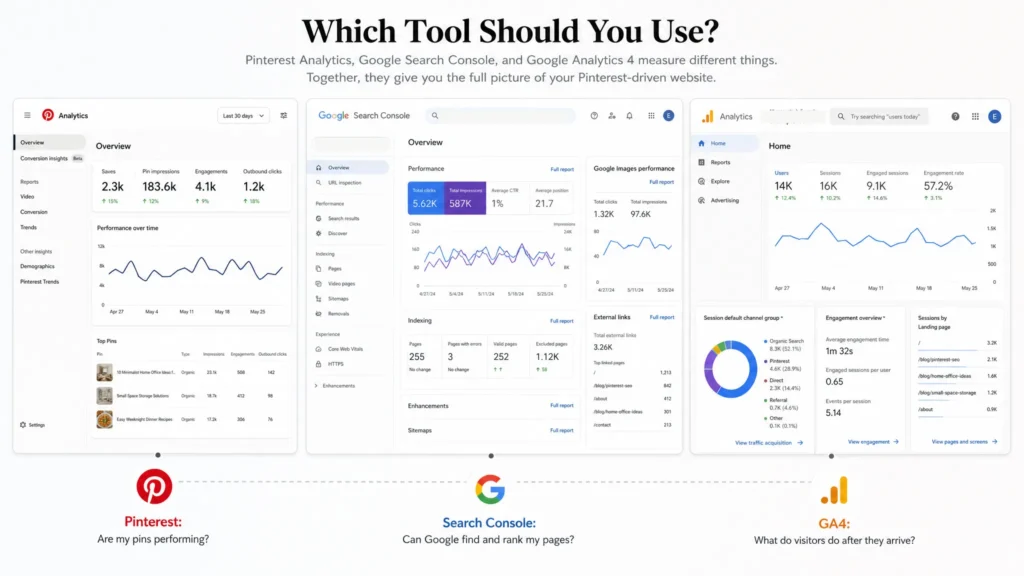
For actual session-level attribution of Pinterest visitors once they land on your site, you need Google Analytics 4, since Search Console has no concept of traffic source or session. Search Console does integrate natively with GA4, and linking the two properties lets you view query and page data next to on-site behavior in one place through Search Console Insights. That combined view is the closest thing to a single dashboard for this workflow, but it still draws on two separate data sources behind the scenes.
A Simple Monthly Routine for Checking Both Tools
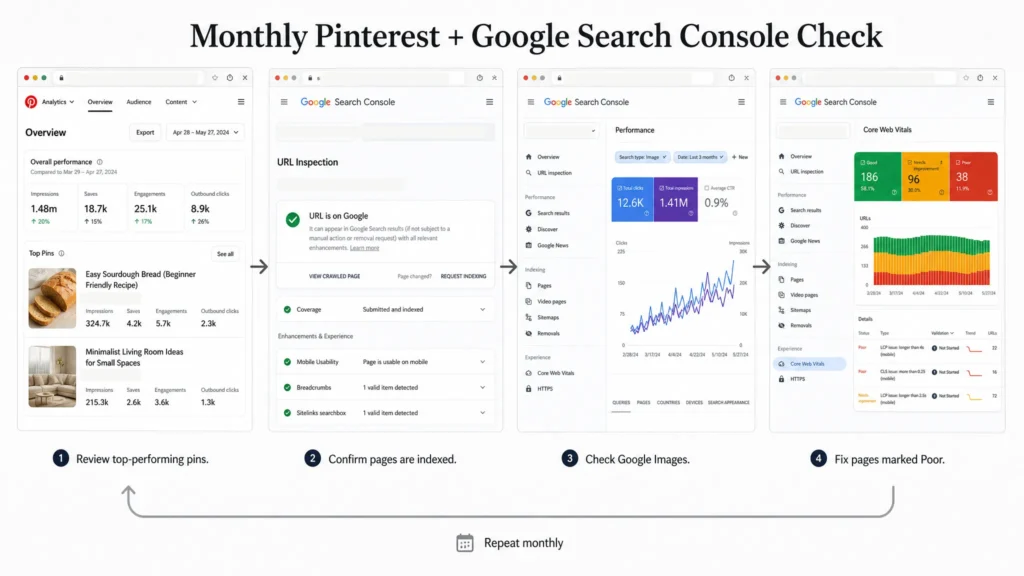
Run through this once a month, right after your regular Pinterest Analytics review:
- Spot-check indexing on any post you published or heavily pinned in the last 30 days using URL Inspection
- Scan the Links report for pinterest.com and note whether it’s climbing as a discovered source
- Filter Performance by Search type: Image and check whether your top-pinned pages are gaining Image search clicks
- Review Core Web Vitals for your highest-traffic pinned pages and flag anything sitting in Poor
None of these steps take longer than a few minutes once the properties are set up, and they catch problems Pinterest Analytics alone won’t surface, like a page that’s quietly dropped out of Google’s index while still getting saves on Pinterest.