Most guides on the types of Pinterest pins are quietly out of date. They still list “Idea Pins” as a headline format and walk you through creating one, when Pinterest folded that format into a single unified Pin back in 2023. If you followed those guides, you’d spend time chasing a button that isn’t in your account anymore.
So let’s fix that. This is the current, accurate list of Pinterest pin types, split into two things people usually mix up: the formats Pinterest officially supports, and the design styles you can choose between when you sit down to make a pin. Both are important when planning your content.
I’ll tell you which ones drive traffic and which ones I’d skip.
What pin type should I make?
When someone asks about pin types, they’re asking two separate things at once.
The first is a format question: image, video, carousel? That’s Pinterest’s own taxonomy, and it’s mostly a technical choice about what media your pin holds.
The second is a design question: plain photo, or photo with a text headline slapped on top? That’s a strategy choice, and it usually matters more for whether anyone clicks. A video pin with a weak design loses to a static image pin with a great one.
Keep those two questions apart, and the whole would be easier to understand.
Pinterest’s official pin formats
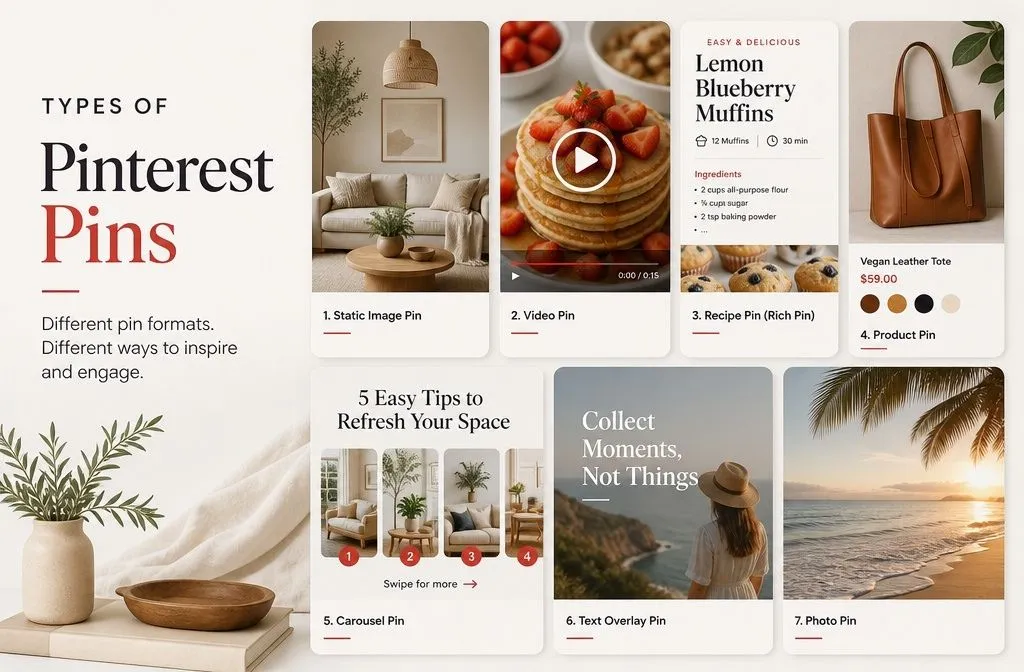
Pinterest’s own help docs list a short set of pin types: image Pins, video Pins, rich Pins, and product Pins. Here’s what each one is and whether it’s worth your time.
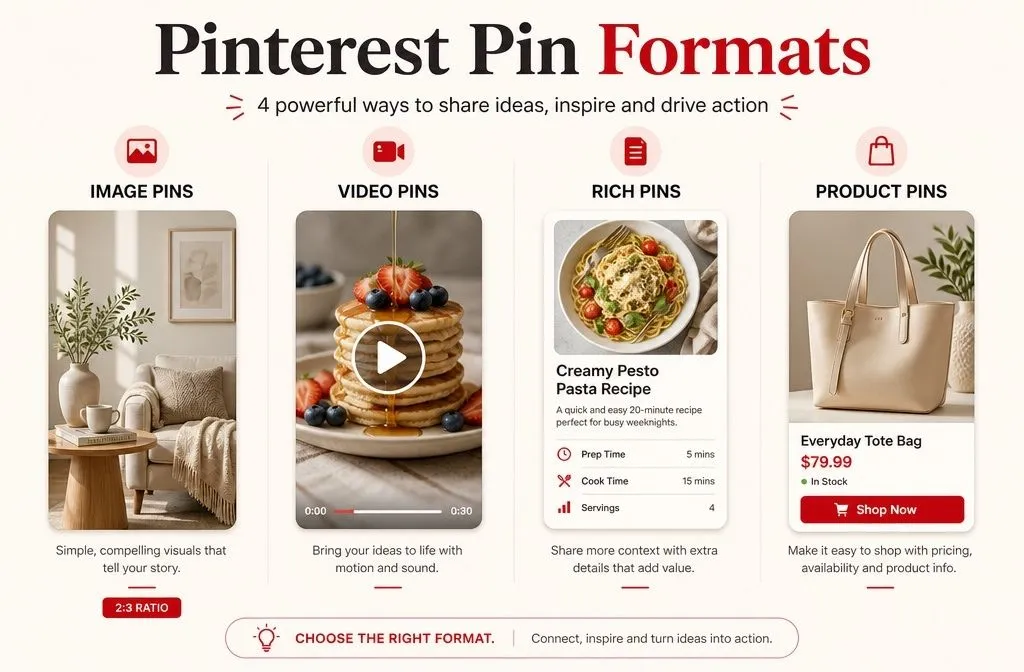
Image pins (also called standard or static pins)
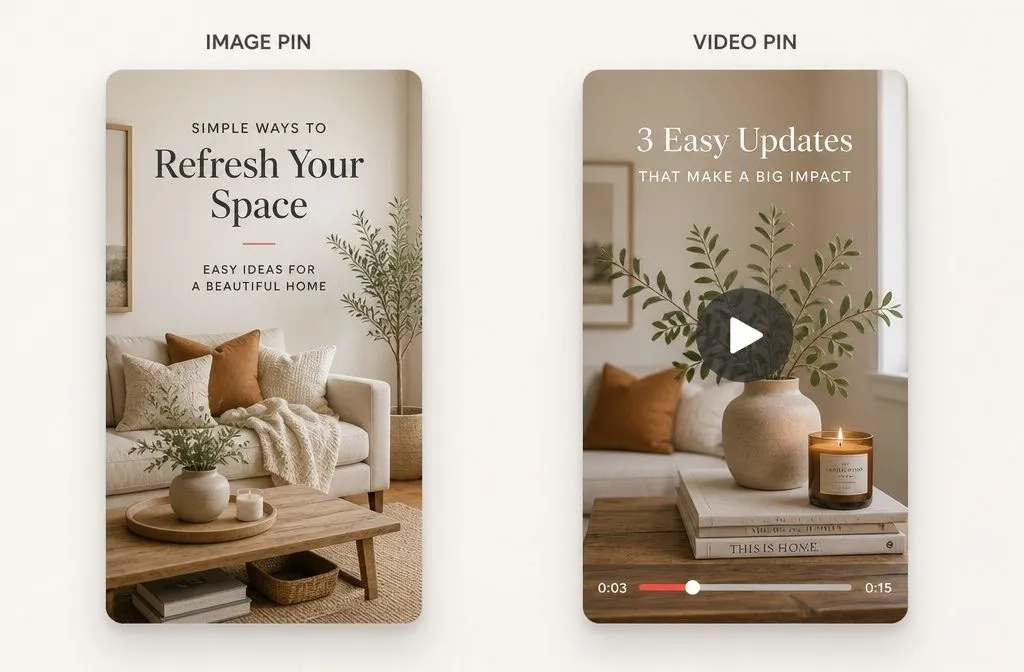
An image pin is a single still image with a title, description, and a link to your site. This is the backbone of Pinterest and where almost all of your traffic will come from. When you save a blog post, a recipe, or a product to Pinterest, this is the pin you’re making.
Pinterest recommends 1000 x 1500 pixels, a 2:3 ratio, and pins taller than roughly 1:2.1 get cropped in the feed. Vertical wins because Pinterest’s feed is a masonry grid, so a taller pin takes up more screen and gets seen more.
If you do one thing well on Pinterest, make it strong image pins. Everything else is a supporting act.
Video pins
A video pin holds a single video, or a mix of videos and images, and it auto-plays in the feed. You can add text overlays, stickers, and effects. Vertical video at 9:16 (1080 x 1920) works best, and you can upload a 9:16 Reel or TikTok clip straight to Pinterest without reformatting it.
Video tends to catch more attention in the feed than a static image. The catch is production time. If you already make short vertical video for Instagram or TikTok, repurposing it here is nearly free and worth doing. If you don’t, I wouldn’t build a video habit from scratch before your image pins are dialed in.
Rich pins
A rich pin isn’t a separate thing you design. It’s a normal pin that automatically pulls extra info from your website, so your pin stays in sync with your page. There are three kinds:
- Article pins pull the headline, description, and author from your blog post.
- Recipe pins pull the title, cook time, servings, ratings, and ingredient list.
- Product pins pull live pricing and availability.
You enable rich pins once, at the site level, and then your pins get richer automatically. For a blogger, article and recipe rich pins are a set-it-and-forget-it win. They make your pins look more credible and save you retyping metadata.
Product pins
Product pins show items that are available to buy, and a tap sends the shopper to the retailer’s site with current price and stock. You create them by adding a product catalog to Pinterest or by setting up product rich pins. If you’re not a merchant, you can still tag products inside a regular pin.
If you sell things, use them. If you’re a content blogger monetizing with ads or affiliates, you probably don’t need them. Affiliate links go on your page, and your pin points to the page, never straight to the affiliate URL.
What happened to Idea Pins
Idea Pins were a multi-page, story-style format Pinterest launched in 2021 (originally called Story Pins). In 2023, Pinterest announced it was merging Idea Pins and standard Pins into one unified Pin format, and by 2026, most accounts only see a single “Create Pin” flow that handles images, video, or multiple pages under one roof.
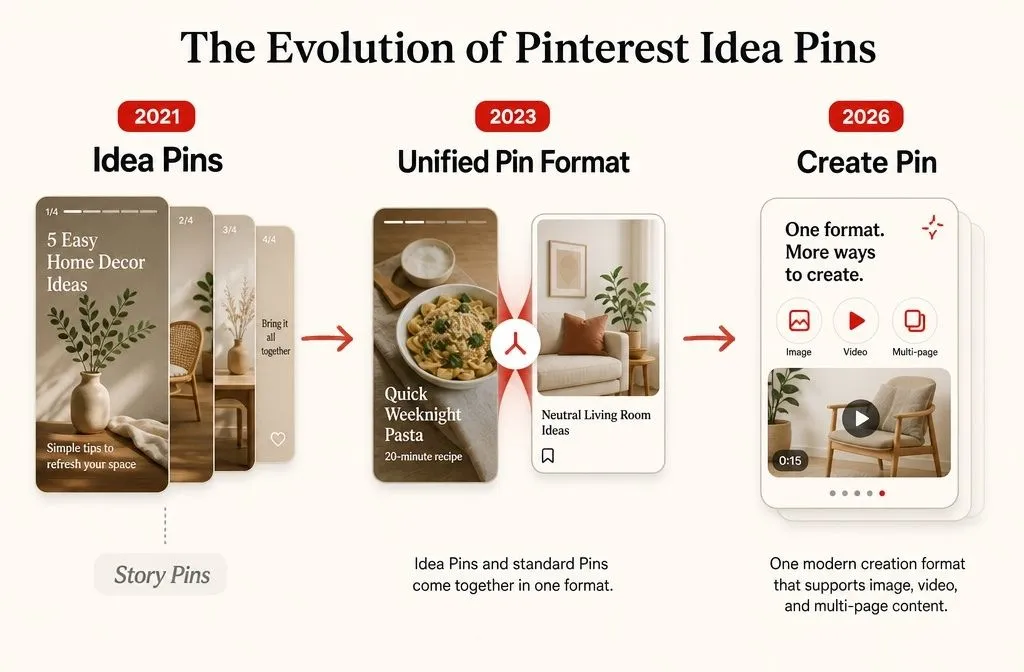
Pinterest’s own words at the time: the update brought “the best of standard Pins and Idea Pins together in a single powerhouse Pin format.” So features that used to be Idea Pin-only, like stickers, music, and multi-page layouts, now live inside the regular Pin. The old separate button is gone for most account.
Two things follow from that. If a guide is still telling you to “create an Idea Pin,” it could be an old update. And the paid version, “Idea ads,” still exists for advertisers, so the name hasn’t vanished entirely; it just moved to the ads side.
Why did Pinterest retire it? Idea Pins didn’t drive the results the platform hoped for. Creators found them more work than standard pins, and they often didn’t link out to a website, which made them weak for traffic. That last part is the whole game for most of us, so no great loss.
Carousel pins live inside the unified format now
A carousel holds 2 to 5 cards in one pin, and each card can carry its own image and link. You build it inside the standard “Create Pin” flow, with all cards at the same aspect ratio, either 2:3 or square.
They can earn more saves than a single image, and they’re genuinely useful for step-by-step content or showing product variations. But most people get more mileage from posting those images as separate pins, since each one becomes its own shot at ranking. I reach for carousels occasionally, not by default.
The design styles that decide whether anyone clicks
Format is only half of it. Once you’ve picked “image pin,” you still choose how it looks. This is where clicks are won or lost, and it’s the part Pinterest’s format list doesn’t touch.
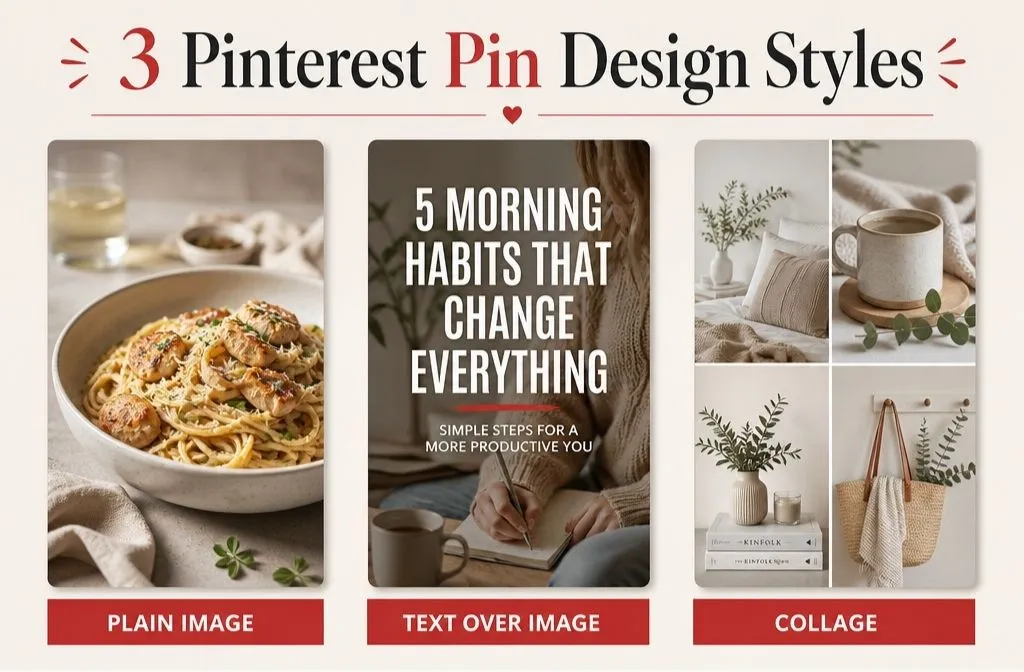
Plain image pins
Just the photo, no text. These shine in visual niches where the image is the pitch: home decor, fashion, food photography, tattoos, travel. If someone can see the finished thing and wants it, you often don’t need words. Food is the clearest case; people need to see the dish before they’ll click.
Text-over-image pins
A photo or background with a bold headline sitting on top. Also called text overlay pins. These carry informational niches where the value isn’t obvious from a picture: parenting advice, finance, health tips, how-to content. The headline does the selling, so the words matter as much as the image.
Keep the font large, simple, and readable. Skip script fonts. Use a strong color contrast so the pin pops in a busy feed. A dark overlay with white text is a boring formula that keeps working.
One trick worth knowing: covering the image with a headline forces people to click to see the full idea, which can lift your click-through rate in the right niche. It works for decor, beauty, fashion, and info content. It does not work for food.
Collage pins
Three to six images arranged in one pin, showing variety around a single idea or outcome. Collages fit both visual and informational niches and are handy for round-up posts where you want to tease several items at once. Test them; they carry some niches beautifully and fall flat in others.
The bigger principle sits above all three styles: don’t let every pin look identical. Accounts that lock into one visual template tend to plateau. Study the top designs in your niche, model what works, and keep testing one or two fresh looks.
So which pin types should you make?
If you’re a blogger or marketer deciding where to spend your time, here’s the short version.
Make image pins the foundation, built in Portrait at 1000 x 1500, and put real effort into the design. Choose plain versus text-over-image based on your niche; visual niches lean plain, informational niches lean text overlay. Turn on rich pins once and let them work in the background. Add video only if you already produce short vertical clips elsewhere. Use carousels and product pins situationally, not as a habit. And stop looking for the Idea Pin button; it’s not coming back.
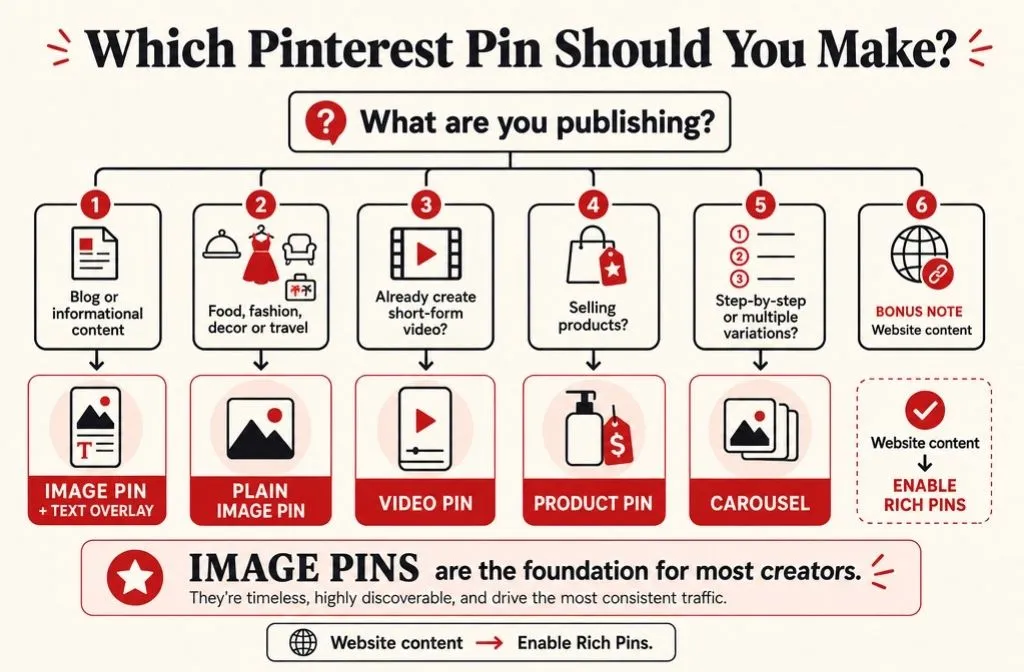
Get the image pin right, and everything else is optional.