If you’re promoting a brand, blog, or shop on Pinterest, a personal profile won’t cut it. Knowing how to make a Pinterest business account is the first real step toward using Pinterest as a marketing channel, since it’s the only account type that unlocks Pinterest Analytics, ad tools, and the Pinterest Business Hub. This guide covers both paths: creating a brand-new account and converting one you already use, plus what to do right after signup.
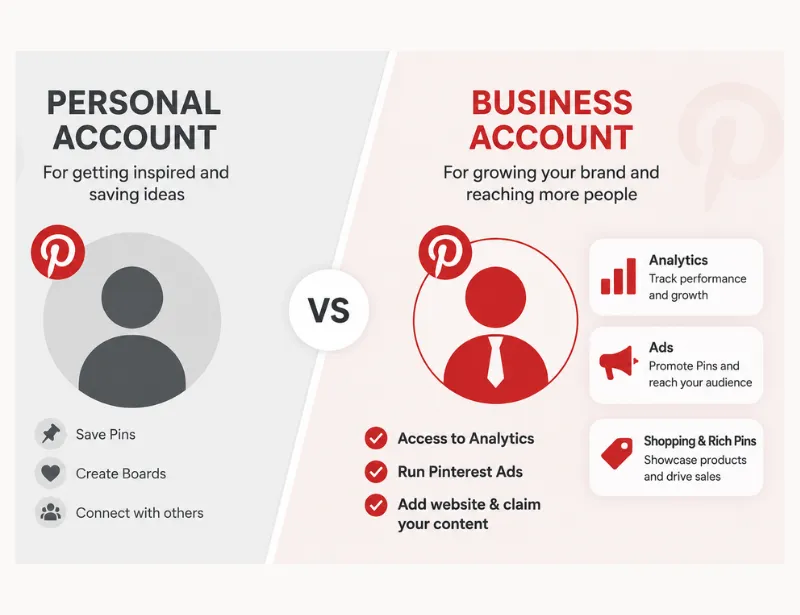
Personal vs. Business Account: Which One Do You Need
A personal Pinterest account is built for saving ideas: recipes, home decor, outfits. It’s free, but it has no analytics, no ad access, and no way to claim a website.
A Pinterest business account unlocks three things a personal account can’t offer: the Pinterest Business Hub, Pinterest Analytics, and the ability to run ads or claim a website. If your goal is to drive traffic to a blog, shop, or service page, Pinterest’s own Business Terms of Service require a business account, not a personal one repurposed for marketing.
Both account types are free, and both let you create boards, publish Pins, and follow other accounts. The difference is entirely in the tools available behind the scenes.
Is a Pinterest Business Account Free?
Yes. Pinterest doesn’t charge to create or convert to a business account, and there’s no paid tier required to access Analytics or the Business Hub. You only pay if you choose to run ads through Pinterest Ads Manager, and that spend is entirely optional and set by you.
How to Make a Pinterest Business Account (New Account)
If you don’t have a Pinterest account yet, or you want a brand-new one that isn’t tied to an existing personal profile, create it from scratch. As of this writing, Pinterest only allows new business account creation from a desktop browser, not the mobile app, so start there even if you plan to manage the account from your phone afterward.
- Go to pinterest.com and click Sign up in the top-right corner. If you’re already logged into another account, log out first to see this option.
- Click Create a business account.
- Enter your email, create a password, and enter your age, then click Create account.
- Fill out the Build your profile fields and click Next.
- Fill out the Describe your business fields and click Next.
- Choose whether you want to run ads, then click Next.
- Select a starting point, or click the X to go straight to your new business account.
Creating an account means accepting Pinterest’s Business Terms of Service and Privacy Policy.
How to Convert a Personal Account to a Pinterest Business Account
If you already have a personal account with boards and followers, converting keeps all of it intact. Your Pins and followers carry over, and you can switch back to a personal account later if you change your mind.
Two things to check first. Your account needs to be public, since business accounts can’t be private, so switch it in your privacy settings if needed. And if your account is currently linked to another Pinterest account, you’ll need to unlink it before converting.
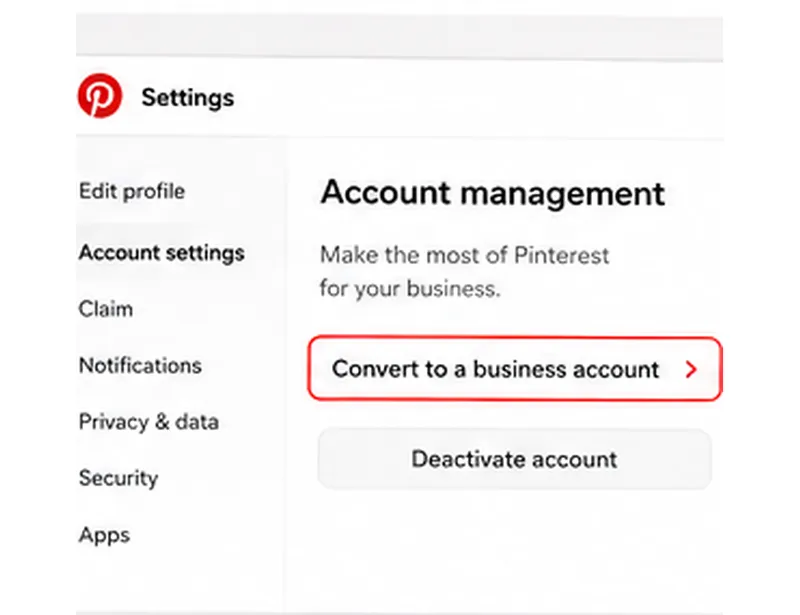
On desktop:
- Log into your personal account.
- Click the more-options icon at the bottom left of the screen.
- Select Settings, then click Account management.
- Find Convert to a business account and click Convert account.
- Confirm by clicking Convert account again.
- Fill out Build your profile, then click Next.
- Fill out Describe your business, then click Next.
- Choose your ad preference, click Next.
- Select a starting point, or click the X to finish.
On the Pinterest app:
- Log into your personal account and tap your profile picture at the bottom right, then again at the top left.
- Tap Account management, then Convert to a business account, then Convert account.
- Enter your profile name and tap Next.
- Enter your website URL and tap Next, or tap Skip this step.
- Select a description for your business and tap Next.
- Choose your ad preference and tap Done.
One note worth flagging: Pinterest no longer lets you set up a new linked account, where one login manages both a personal and a business profile. If you linked accounts in the past, they’ll stay linked unless you unlink them, but that option isn’t available for new setups anymore. If a guide tells you to “add a linked business account,” that step is outdated.
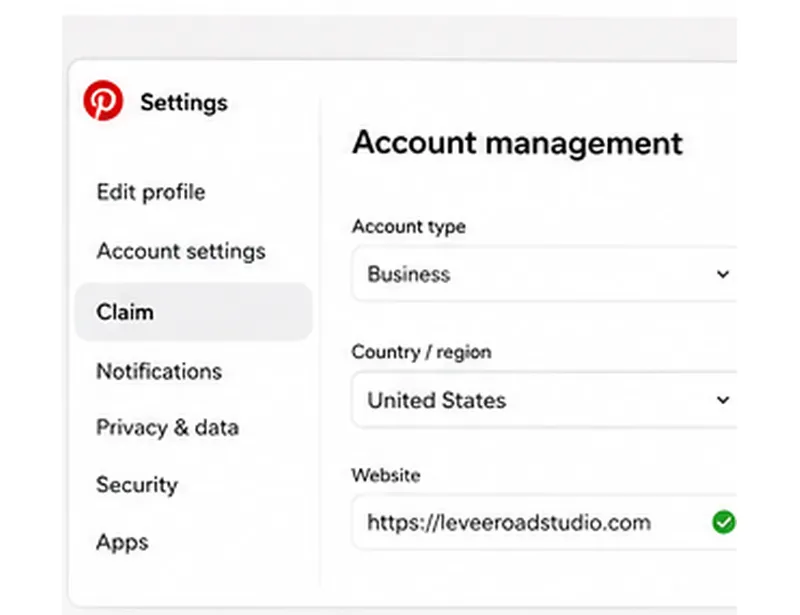
What to Do After You Set Up Your Business Account
Converting or creating the account is step one. A few things right after signup make the rest of your Pinterest strategy work:
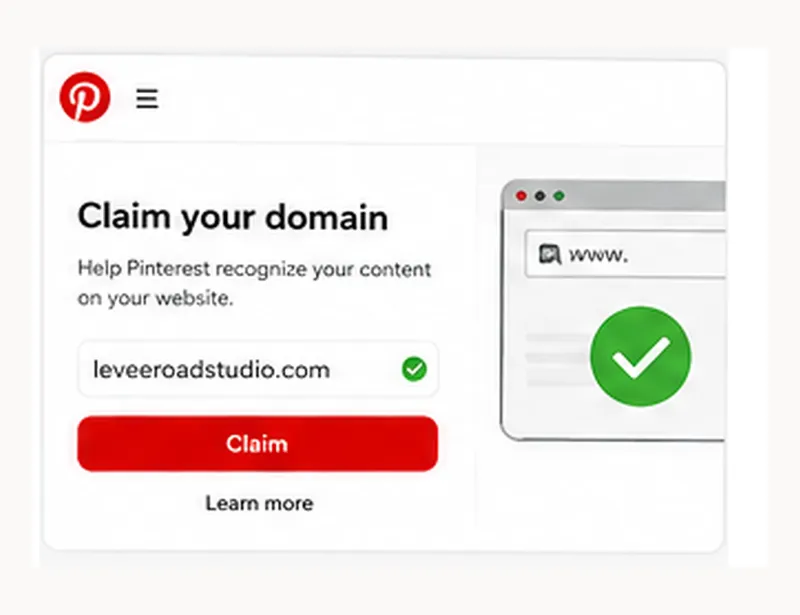
- Claim your website. This connects your Pins to your domain and unlocks accurate analytics for your content. Read the tutorial on how to claim your website.
- Enable Rich Pins. These automatically pull your article title, description, and other metadata into every Pin from your site. Learn more about Rich Pins.
- Build your first board. Give the algorithm something to work with before you start pinning content. You can check my Pinterest Board Ideas here.
If you’d rather not handle the setup yourself, or you want the account built correctly from day one with a growth plan attached, [book a free Pinterest strategy call] and we’ll walk through it together.
Once the account itself is squared away, the bigger lever is how you structure it for search. That’s covered in [What Is Pinterest SEO? A Beginner’s Guide], which walks through how Pinterest actually ranks Pins and boards.
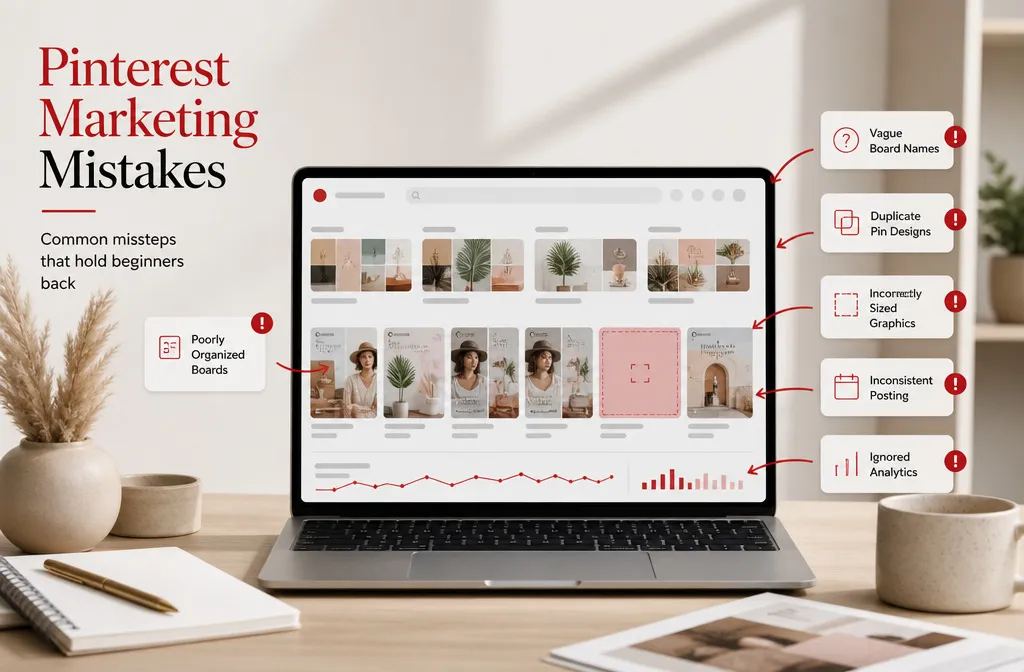
Common Setup Mistakes to Avoid
Converting a private account without switching it to public first. Pinterest will block the conversion until you do, so check your privacy settings before you start.
Assuming you can create a new account from your phone. New business account creation is desktop-only right now. Converting an existing account works on both desktop and the app, but starting fresh doesn’t.
Skipping the website claim. Without it, your Analytics won’t show which of your Pins are actually driving traffic back to your site, which makes it impossible to tell what’s working.
Treating the account as “done” after conversion. Making a Pinterest business account is the setup step, not the strategy. The keyword research, board structure, and pinning schedule that come after are what actually generate traffic.